
Excel XML lets you edit visible rows outside Polyframe and import the changed translations back into the project.
Export XML
- Set filters so the grid shows the rows you need.
- Click Export XML or press
Cmd/Ctrl+Alt+E. - Save the
.xmlfile and open it in Excel.
The export contains only rows visible at that moment. Your .PFP project and source IDML stay unchanged.
Import translations
After editing, save the workbook as Excel XML again. In Polyframe, choose Import XML or press Cmd/Ctrl+Alt+I. The app matches rows to the current project and updates Target fields.
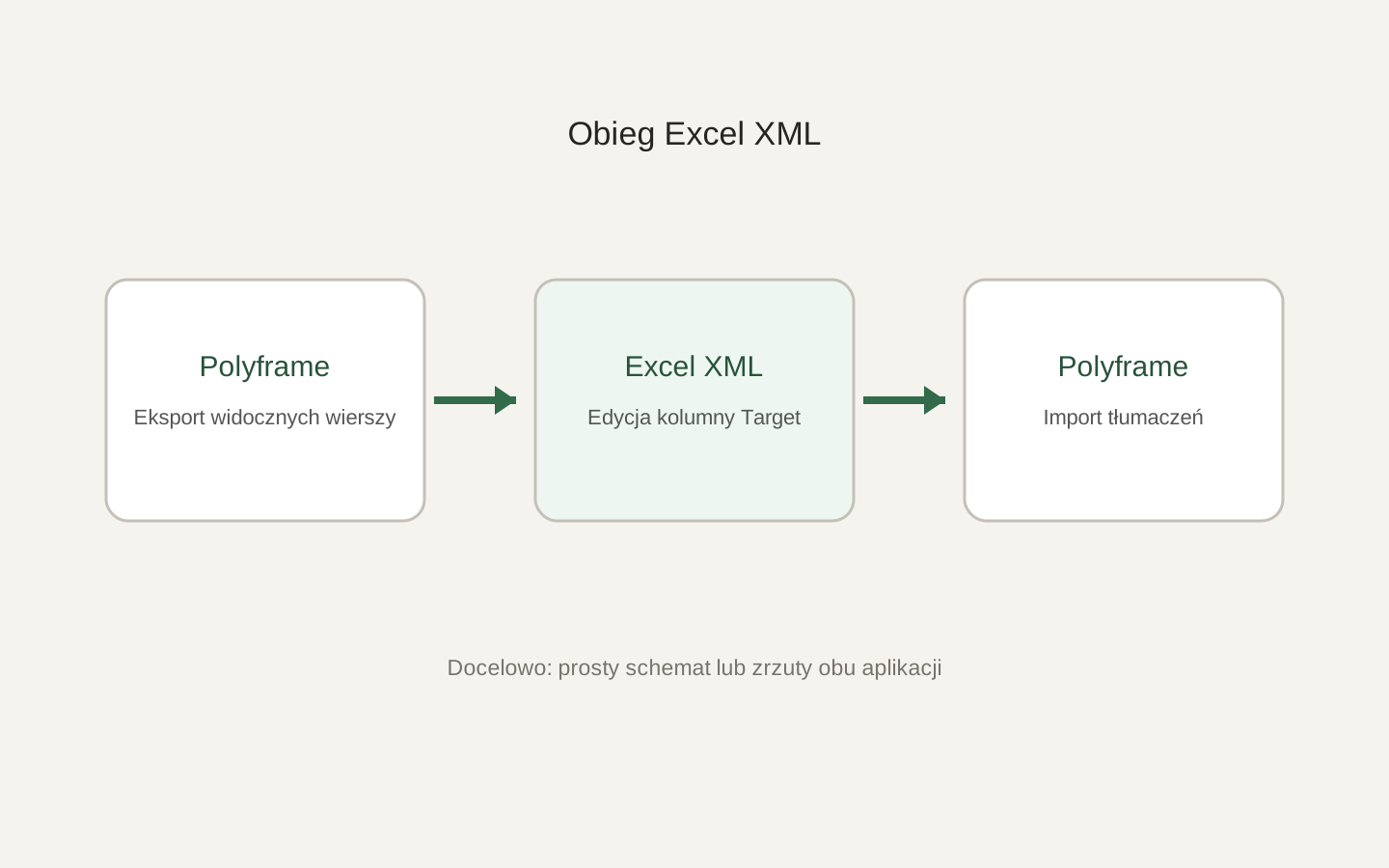 Image placeholder: show export of visible rows, Target editing in Excel and import back to Polyframe. 16:10 crop. Target alt text: “Translation round trip with Excel XML and Polyframe”.
Do not remove columns used to identify rows, and do not import XML from another project. Review updated segments and save the
.PFPafter import.
Finally, run inline tag validation.