Polyframe imports IDML files exported from Adobe InDesign. It does not open the original .indd file. Ask the designer for the current IDML and a PDF for reference.
Before you import
- Make sure the IDML contains the final source text and all required pages.
- Keep the original INDD and IDML files unchanged.
Import the document
- Select Import IDML in the top toolbar or use
Cmd/Ctrl+Shift+I. - Choose the
.idmlfile. - Check the imported text in the Source column. Tables, captions and paragraphs appear as separate rows.
- Choose the target language above the grid. You can add more languages later.
If text or pages are missing, stop and check that you received the latest IDML. It is better to import the correct file than to work with an incomplete source.
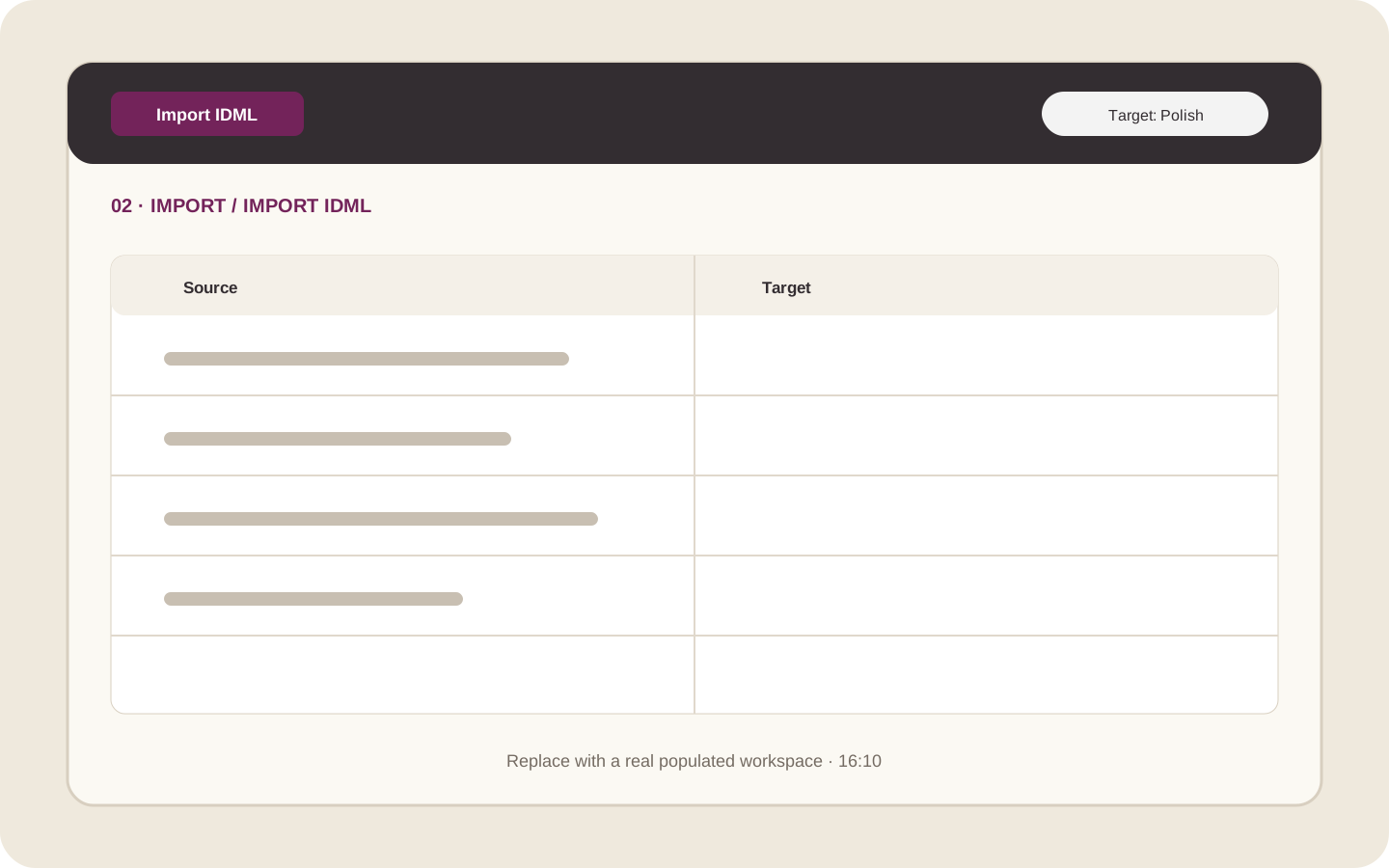 Illustration placeholder: show Import IDML, the target language and several Source rows. Crop: 16:10. Use neutral sample text. Final alt text: “Imported IDML text in the Polyframe translation grid”.
Save the working project
Select Save or use Cmd/Ctrl+S. Polyframe saves the document as a local .PFP project with its languages, translations and settings. The source IDML stays unchanged.
Use the PDF only as a visual reference. Polyframe needs IDML to keep the text connected to the InDesign layout.