After importing an IDML, you can do most of your work in one view. The main areas stay within reach.
Top toolbar
This is where you find New, Import IDML, Open, Save, XML import and export, Validate and Export. Status filters and search are nearby.
Centre of the window
The grid shows Source and Target text. Other columns show quality, length difference, available actions and segment status. Tabs above the grid switch between target languages.
Side panels
- the left side contains Structure, Tables, Layers and Styles filters;
- the right Inspector has Translate, Memory, Settings and Warnings tabs;
- the separate Memory view manages
.PFMfiles.
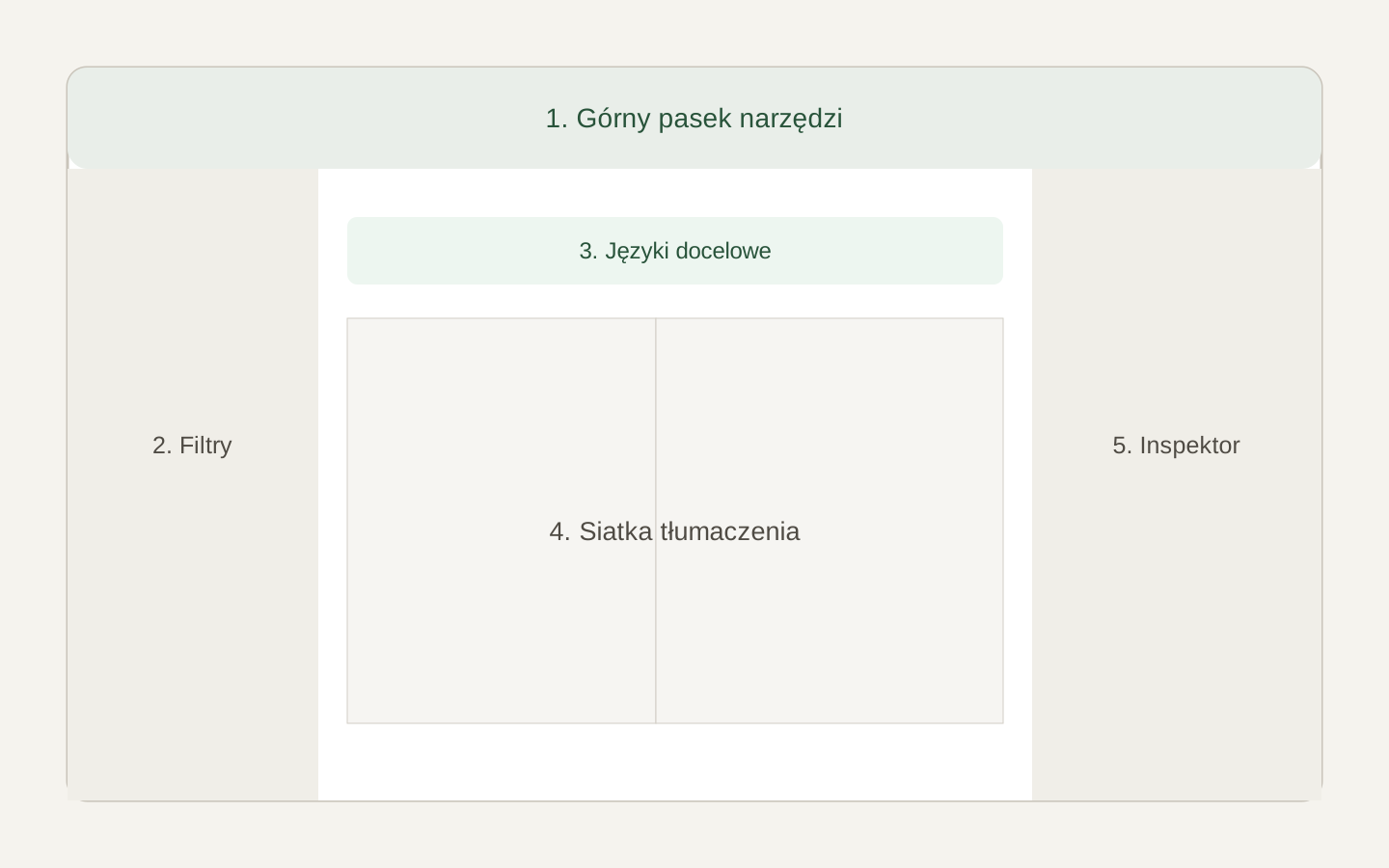 Image placeholder: label the toolbar, left panel, grid, target tabs and Inspector. 16:10 crop. Target alt text: “Main areas of the Polyframe interface”.
You do not need to configure the whole app before your first project. Import an IDML, choose a target language and start with the grid.