Export creates a new IDML for the selected target language. It does not overwrite the source file. Save the .PFP project and check the language above the grid before you export.
Check the translation
- Use the status filters to find empty or problem rows.
- Select Validate or use
Cmd/Ctrl+Shift+L. - Check the Warnings panel. Fix any problems with inline tags and validate again.
Export the active language
- Select Export or use
Cmd/Ctrl+Shift+E. - Choose where to save the file and give it a clear name, for example
catalogue-DE-translated.idml. - Check the export message and the saved file.
If you use Trial, part of the translated text will contain Polyframe markings. An App Licence or Polyframe AI plan enables clean export.
Keep the .PFP project as your working file. If the designer asks for a change, edit the project in Polyframe and export a new IDML.
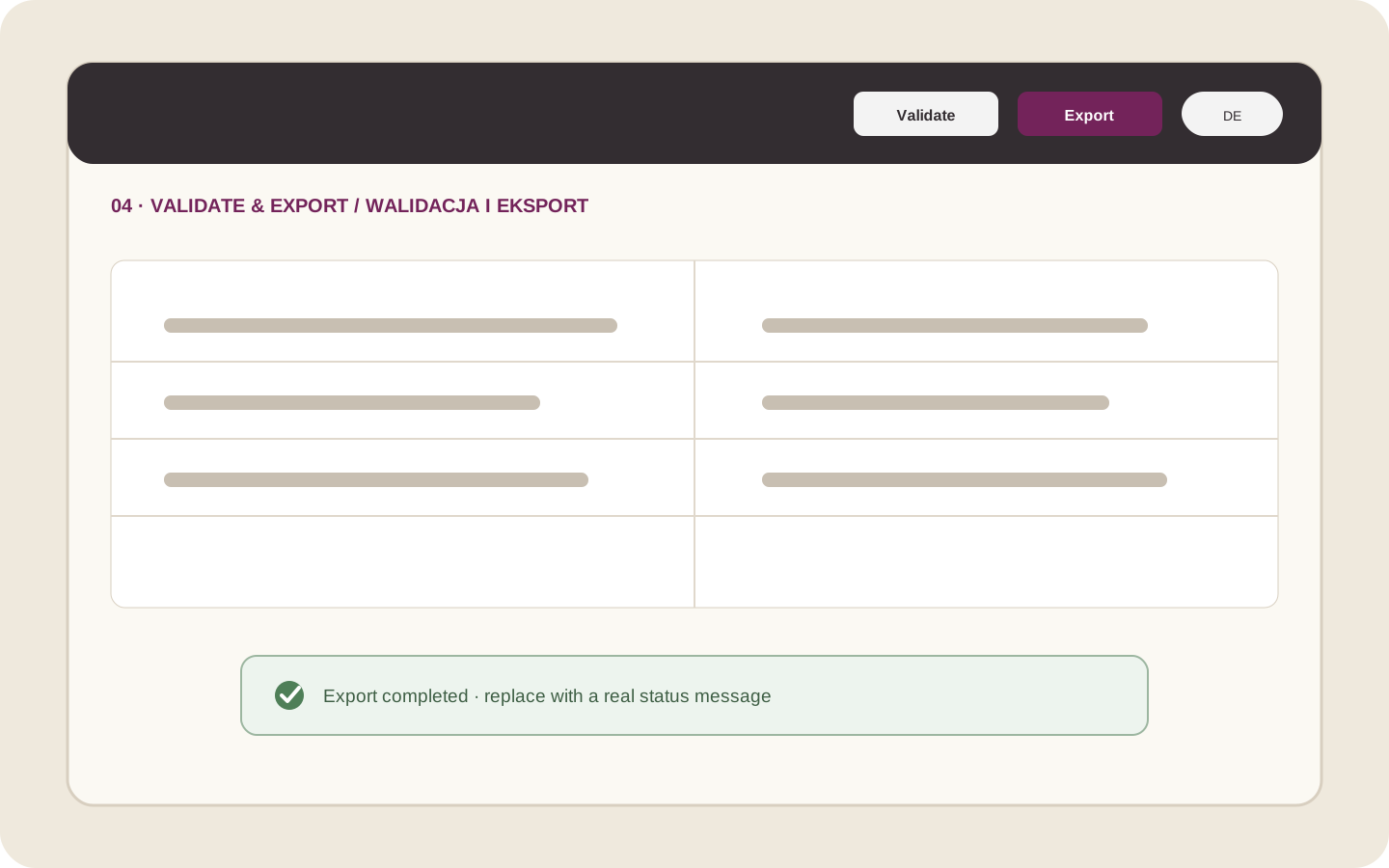 Illustration placeholder: show the target language, Validate, Export and a successful export message. Do not show a real file path or licence key. Crop: 16:10. Final alt text: “Validate and export a translated IDML from Polyframe”.
Return the file for layout review
Send the IDML to the designer with the language name and any useful notes. The designer should open it in Adobe InDesign and check text overflow, line breaks, fonts and the final pages.
Translation changes text length. Always check the final layout in InDesign before creating the production PDF.
For a project with several languages, you can export a separate IDML for each language. A guide for this option is coming soon.